Community Applications (CA)
Unraid® is a registered trademark of Lime Technology, Inc. This documentation is not affiliated with Lime Technology, Inc.
Get your plugin into the official Unraid® app store.
Overview
Community Applications (CA) is the primary plugin/container discovery platform for Unraid®. Getting your plugin listed in CA makes it easily discoverable and installable by Unraid® users.
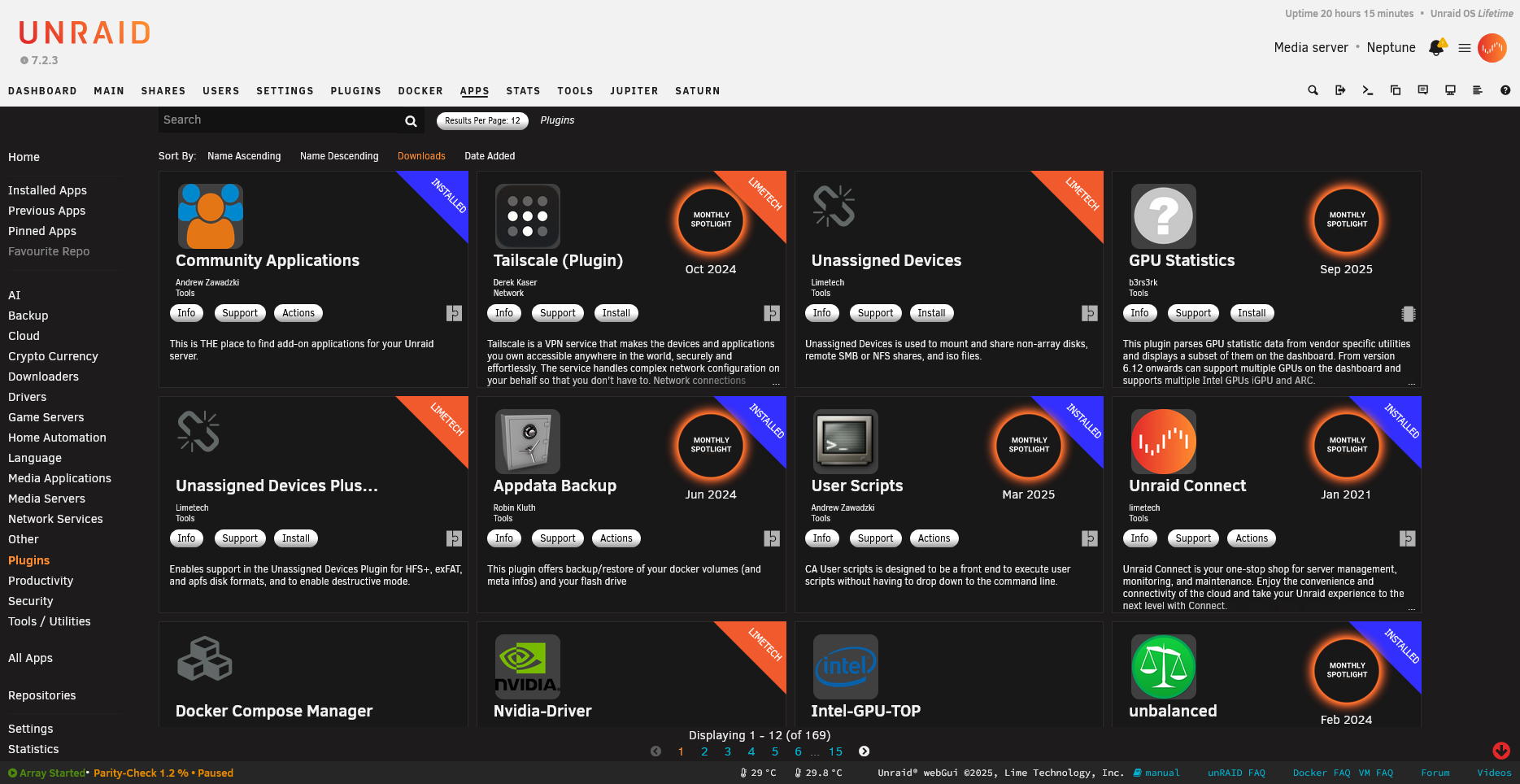 The CA plugins section displays available plugins sorted by popularity, showing download counts and quick-access actions
How CA Works
- CA maintains a repository of application templates
- Users browse/search within the CA interface
- Selecting your plugin triggers installation via Plugin Manager
- CA handles version checking and updates
Requirements for Listing
To get your plugin listed in Community Applications, you need:
- A working PLG file - Hosted at a stable URL
- Support thread - On the Unraid forums
- CA XML template - Describes your plugin to CA
- Icon - PNG image for the CA interface
CA XML Template
The template file describes your plugin to Community Applications. It contains display information (name, description, icon), installation URL (direct link to your PLG file), and categorization for the app browser. Host this file in your repository or submit it to the CA templates repo.
<?xml version="1.0" encoding="UTF-8"?>
<Plugin>
    <Name>My Plugin Name</Name>
    <PluginURL>https://raw.githubusercontent.com/username/repo/main/myplugin.plg</PluginURL>
    <PluginAuthor>Your Name</PluginAuthor>
    <Description>
A brief description of what your plugin does. This appears in search results.

A longer description can follow. Use plain text, basic formatting is supported.
    </Description>
    <Icon>https://raw.githubusercontent.com/username/repo/main/icon.png</Icon>
    <Category>Tools: Productivity:</Category>
    <Support>https://forums.unraid.net/topic/12345-my-plugin-support/</Support>
    <Project>https://github.com/username/repo</Project>
    <MinVer>6.9.0</MinVer>
    <MaxVer>7.99</MaxVer>
</Plugin>
Use either a
Pluginroot or aContainersroot format expected by the target CA template type. Do not nest<Plugin>inside<Containers>for plugin templates.
Template Elements
| Element | Required | Description |
|---|---|---|
Name |
Yes | Display name in CA interface |
PluginURL |
Yes | Direct URL to your .plg file |
PluginAuthor |
Yes | Your name/handle |
Description |
Yes | What the plugin does |
Icon |
Yes | URL to 256x256 PNG icon |
Category |
Yes | CA categories (colon-separated) |
Support |
Recommended | URL to support forum thread |
Project |
Recommended | URL to source code/project |
MinVer |
Recommended | Minimum Unraid version |
MaxVer |
Optional | Maximum Unraid version |
Categories
Use appropriate categories to help users find your plugin:
| Category | Description |
|---|---|
Tools: |
General utilities and tools |
Tools:System |
System management tools |
Tools:Utilities |
General utilities |
Network: |
Network-related plugins |
Network:Management |
Network management |
Backup: |
Backup solutions |
Productivity: |
Productivity tools |
Status: |
Monitoring and status |
Security: |
Security-related plugins |
Multiple categories can be combined: Tools:System:Status:
Icon Requirements
- Format: PNG (with transparency recommended)
- Size: 256x256 pixels (minimum)
- Style: Clear, recognizable at small sizes
- Hosting:
 GitHub raw URL or other reliable CDN
📷 Screenshot needed: Plugin icons as displayed in CA

https://raw.githubusercontent.com/username/repo/main/images/icon.png
Submission Process
1. Prepare Your Plugin
Ensure your plugin:
- Works correctly on supported Unraid versions
- Has a stable PLG file URL
- Includes proper versioning
2. Create Support Thread
Create a support thread on the Unraid Forums:
- Choose an appropriate subforum
- Include installation instructions
- Document features and usage
- Monitor for user feedback
3. Create CA Template
Host your template XML file and icon assets in your own public GitHub repository. This is the repository you will submit in the Asana form.
- Use your own repo as the primary submission source.
- Include one or more valid Unraid Docker or Plugin XML templates.
- Include a
ca_profile.xmlfile with a non-empty<Profile>section for author/support information. - Add an OSL-approved open source license for repository contents (templates, metadata, and docs).
- Ensure the repository is public, active, and not archived or disabled.
4. Submit to CA via Asana form
The current CA intake process uses the Asana submission form. This is the step that actually sends your plugin and template details to the CA maintainers.

The Asana form typically asks for:
- Maintainer / author contact information
- GitHub repository URL containing your XML template
- Preferred repository name for CA listing
- Confirmation of GitHub 2FA and repository visibility
- Support thread URL and project XML requirements
- Agreement to Community Applications policies
- Optional comments or additional notes
Submit the form after your own repository is ready and your support thread exists.
The repository you submit should meet these requirements:
- Public and active GitHub repo (not private, archived, or disabled)
- Valid Unraid Docker or Plugin XML templates
ca_profile.xmlwith a non-empty<Profile>section- OSL-approved open source license for repository contents
- Icon assets and metadata hosted in the repository or via stable URLs
Helpful CA resources include:
- Submission Help
- Repository XML Format
- Repository Information XML
- XML Field Reference
- Builder Guide
- Starter Repository
- Forum Support Thread
- Contact Support
This form is the current official submission path. The ca.unraid.net/submit preview is a separate repo-based workflow and should be considered secondary until it is fully live.
New ca.unraid.net/submit preview
A new repository submission UI is also available, but it is not yet officially live and only partially works. Use the Asana form for current submissions.

The preview interface shows a repository-based workflow with requirements such as:
- Public GitHub repository with valid Unraid Docker or Plugin XML templates
- A
ca_profile.xmlfile with author/support information - An OSL-approved open source license for repository contents
- A GitHub URL entry and review step before submit
For reference, CA also documents the overall app process at:
Note: The
https://ca.unraid.net/submitpage is still in preview and should not be relied on for production submissions.
5. Await Approval
The CA maintainer will review your submission:
- Verify plugin works correctly
- Check template accuracy
- Ensure support thread exists
- May request changes
Updating Your Plugin
When you release updates:
- Update your PLG file - Increment version number
- Update changelog - Add changes in the
<CHANGES>section - CA auto-detects updates - No template changes needed for version bumps
If you change URLs or metadata, update your CA template as well.
Best Practices
Description Writing
<Description>
Brief one-line summary of what the plugin does.

Extended description explaining features:
- Feature 1: What it does
- Feature 2: Another capability
- Feature 3: Key functionality

Requirements: List any dependencies or requirements.
</Description>
Version Compatibility
Always specify minimum version requirements:
<MinVer>6.9.0</MinVer>
Set MaxVer only if your plugin is known to be incompatible with newer versions:
<MaxVer>6.12.99</MaxVer>
Changelog Visibility
Keep your PLG changelog updated - CA displays this to users:
<CHANGES>
### 2026.02.01
- Added new feature X
- Fixed bug in settings page

### 2026.01.15
- Initial release
</CHANGES>
Testing CA Integration
Before submitting, test that your plugin installs correctly:
- Use the Plugin Manager’s “Install Plugin” feature
- Enter your direct PLG URL
- Verify installation completes without errors
- Test all features work as expected
- Verify uninstallation is clean
Troubleshooting
Plugin Not Appearing in CA
- Verify template XML is valid
- Check PluginURL is accessible
- Ensure icon URL works
- Contact CA maintainer if approved but not showing
Installation Failures
- Check PLG file syntax
- Verify all download URLs work
- Test hash/checksum values
- Review server logs for errors
Updates Not Detected
- Ensure version number increased in PLG
- Check pluginURL matches CA template
- Clear browser cache and retry
Resources
Example Complete Workflow
- Develop: Create and test your plugin locally
- Host: Push to GitHub with PLG, icon, and template
- Forum: Create support thread with documentation
- Submit: Fork CA repo, add template, create PR
- Maintain: Monitor thread, respond to issues, push updates