PLG File Reference
✅ Validated against Unraid 7.2.3 - PLG structure and attributes verified against installed plugins.
See the DocTest validation plugin PLG for a complete working example.
The .plg file is the heart of every Unraid plugin. It’s an XML document that tells the plugin system how to install, update, and remove your plugin.
Attribute case matters in practice. Use the documented attribute names exactly.
- Top-level
<PLUGIN>attributes such asminandmaxare lowercase.<FILE>attributes are mixed-case in the current plugin manager implementation, for exampleName,Run,Method,Mode,Type,Min, andMax.- In particular,
<FILE ... Max="6.12.99">works, while lowercase<FILE ... max="6.12.99">may be ignored.
Basic Structure
<?xml version='1.0' standalone='yes'?>
<!DOCTYPE PLUGIN [
<!ENTITY name        "myplugin">
<!ENTITY author      "Your Name">
<!ENTITY version     "2026.02.01">
<!ENTITY launch      "Settings/myplugin">
<!ENTITY pluginURL   "https://raw.githubusercontent.com/you/repo/main/myplugin.plg">
<!ENTITY pluginLOC   "/boot/config/plugins/&name;">
<!ENTITY emhttpLOC   "/usr/local/emhttp/plugins/&name;">
]>

<PLUGIN  name="&name;"
         author="&author;"
         version="&version;"
         launch="&launch;"
         pluginURL="&pluginURL;"
         icon="cubes"
         min="6.9.0"
         support="https://forums.unraid.net/topic/12345/"
         project="https://github.com/you/repo"
         readme="https://github.com/you/repo#readme"
>

<CHANGES>
### 2026.02.01
- Initial release
</CHANGES>

<!-- FILE elements and scripts go here -->

</PLUGIN>
DOCTYPE Entities
Entities act like variables in the XML. They make your PLG file easier to maintain:
<!DOCTYPE PLUGIN [
<!ENTITY name        "myplugin">           <!-- Plugin name (required) -->
<!ENTITY author      "Your Name">          <!-- Your name/handle -->
<!ENTITY version     "2026.02.01">         <!-- Current version -->
<!ENTITY launch      "Settings/myplugin">  <!-- Menu path after install -->
<!ENTITY pluginURL   "https://...">        <!-- URL to check for updates -->
<!ENTITY pluginLOC   "/boot/config/plugins/&name;">
<!ENTITY emhttpLOC   "/usr/local/emhttp/plugins/&name;">
<!ENTITY packageMD5  "abc123...">          <!-- MD5 of your package -->
]>
Use entities throughout the file with &name; syntax.
PLUGIN Attributes
The <PLUGIN> tag supports these attributes:
Required Attributes
| Attribute | Description |
|---|---|
name |
Unique plugin identifier. Must match the folder names used. No spaces or special characters. |
version |
Version string for update comparison. LimeTech uses YYYY.MM.DD format. |
Recommended Attributes
| Attribute | Description |
|---|---|
author |
Displayed in Plugin Manager. Defaults to “anonymous” if omitted. |
pluginURL |
URL to download latest version. Required for update checking. |
support |
Link to support thread (usually Unraid forums). |
project |
Link to project homepage (usually GitHub). |
readme |
Link to README file. |
Optional Attributes
| Attribute | Description |
|---|---|
launch |
Menu path to open after installation. Format: MenuSection/PageTitle |
icon |
FontAwesome icon name (without fa- prefix) for Plugin Manager (Unraid 6.4+; 6.7+ supports icon on <PLUGIN> too). |
support |
URL to support thread for the plugin (Unraid 6.6+; shown in Plugins page). |
project |
Project home page (usually GitHub). |
readme |
README URL or path for plugin details display. |
min |
Minimum Unraid version required on the top-level <PLUGIN> tag (e.g., "6.9.0"). |
max |
Maximum Unraid version supported on the top-level <PLUGIN> tag. |
Compatibility notes
categoryis deprecated starting around v6b11/v6b12 and should not be required for new plugins.system="true"is a plugin manager extension idea used to install into/boot/plugins(system plugins), instead of/boot/config/plugins.
Clicking a plugin name in the Plugins page opens the details panel:
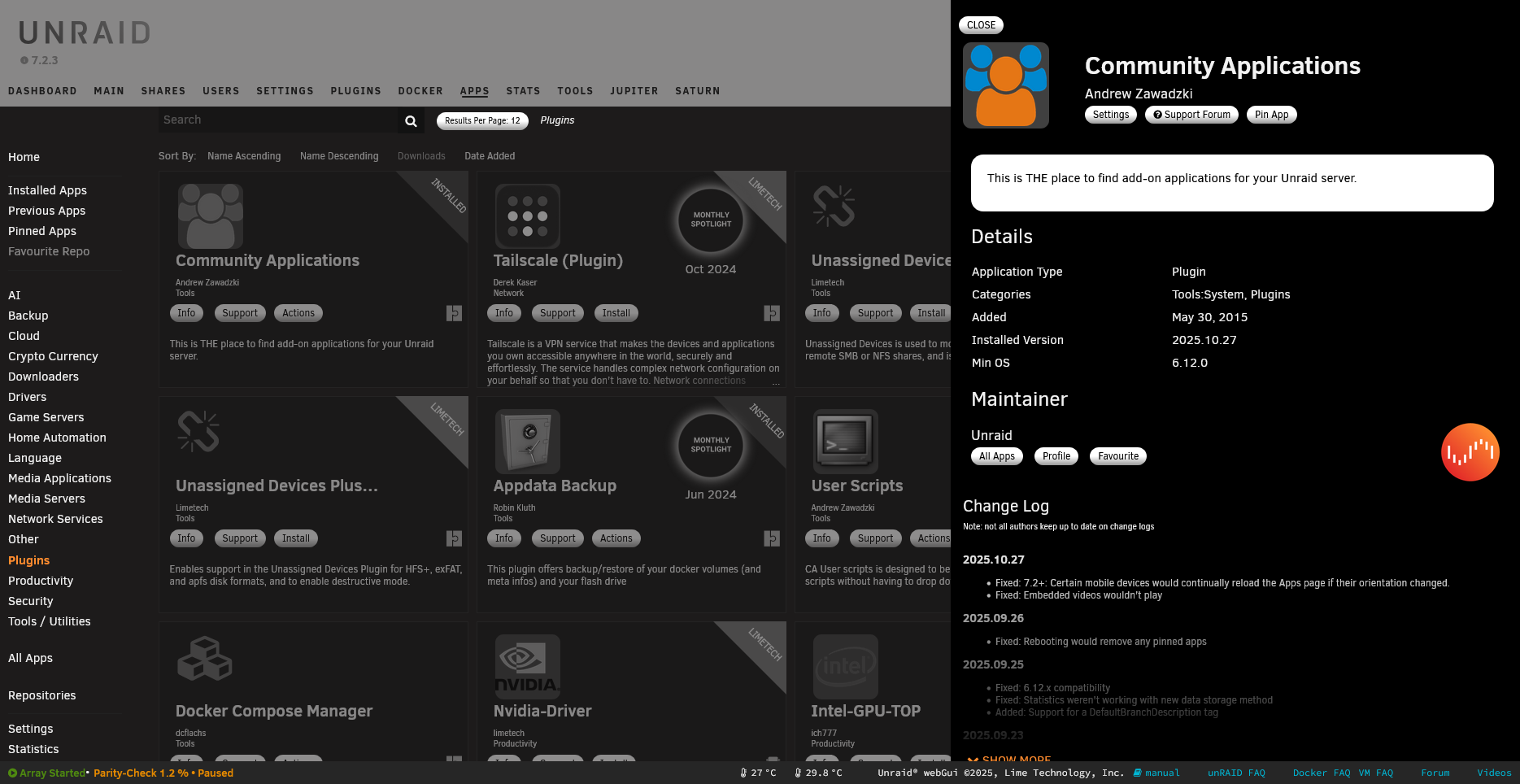 Plugin details showing version, author, support link, and changelog
CHANGES Section
The <CHANGES> element contains your changelog in Markdown format:
<CHANGES>
### 2026.02.01
- Fixed bug in settings page
- Added new feature X

### 2026.01.15
- Initial release
</CHANGES>
This is displayed in the Plugin Manager when viewing plugin details.
FILE Elements
<FILE> elements define files to download, create, or run scripts.
The plugin manager processes <FILE> elements in document order.
- A
<FILE>block with<URL>downloads to the targetNamepath. - A later
<FILE>block with<LOCAL>copies from an already-existing local path. <LOCAL>is just a filesystem copy. It does not fetch a URL by itself.- If the destination file already exists, the plugin manager skips recreating it unless a supplied checksum fails, in which case the old file is removed and the block is retried.
Download a File
<FILE Name="/boot/config/plugins/myplugin/myfile.txz">
<URL>https://example.com/myfile.txz</URL>
<SHA256>a1b2c3d4e5f6...</SHA256>
</FILE>
Integrity Verification
Unraid supports both SHA256 and MD5 for file verification:
Behavior in the current plugin manager implementation:
SHA256takes precedence overMD5when both are present on the same<FILE>block.- If the destination file already exists, the plugin manager checks
SHA256orMD5before deciding whether to skip the block. - If the existing file hash matches, the block is skipped.
- If the existing file hash does not match, the existing file is removed and the block is retried.
- For
<FILE>blocks with<URL>, the downloaded file is verified again after download, and installation aborts if the checksum is wrong. - For
<FILE>blocks using<LOCAL>or<INLINE>, the checksum mainly controls whether an existing destination is reused or removed first. There is no second post-create checksum verification step for a newly created local or inline file.
Use SHA256 and MD5 exactly as shown here. These element names are case-sensitive in practice.
<!-- Preferred: SHA256 (more secure) -->
<FILE Name="/boot/config/plugins/myplugin/myfile.txz">
<URL>https://example.com/myfile.txz</URL>
<SHA256>a1b2c3d4e5f6789...</SHA256>
</FILE>

<!-- Legacy: MD5 (still supported) -->
<FILE Name="/boot/config/plugins/myplugin/myfile.txz">
<URL>https://example.com/myfile.txz</URL>
<MD5>abc123def456...</MD5>
</FILE>
Generate hashes with these commands. SHA256 is preferred for security, but MD5 is still supported for compatibility with older plugins:
sha256sum file.txz   # SHA256 (recommended)
md5sum file.txz      # MD5 (legacy)
Download and Install a Package
The Run attribute specifies a command to execute after the file is placed:
<FILE Name="/boot/config/plugins/myplugin/myplugin-package.txz" Run="upgradepkg --install-new">
<URL>https://github.com/you/repo/releases/download/v1.0/myplugin-package.txz</URL>
<MD5>abc123def456...</MD5>
</FILE>
Common Run values:
upgradepkg --install-new- Install Slackware packageupgradepkg --install-new --reinstall- Force reinstall even if same version/bin/bash- Run as a shell script
Run an Inline Script
<FILE Run="/bin/bash">
<INLINE>
echo "Running installation script..."
mkdir -p /boot/config/plugins/myplugin
echo "Done!"
</INLINE>
</FILE>
Any non-zero exit code from an
<INLINE>block aborts installation/update. If your script may hit non-fatal failures, handle them and end with a successful exit status.
<FILE Run="/bin/bash">
<INLINE>
set +e
some_optional_command || true
echo "Continuing install"
exit 0
</INLINE>
</FILE>
Version-Gated Sections with Min and Max
Individual <FILE> sections support Min and Max attributes to conditionally execute or download based on OS version.
<!-- Only processed on Unraid 7.0.0+ -->
<FILE Name="/boot/config/plugins/myplugin/newer-only.txz" Min="7.0.0">
<URL>https://example.com/newer-only.txz</URL>
</FILE>

<!-- Only processed on Unraid 6.12.x and below -->
<FILE Run="/bin/bash" Max="6.12.99">
<INLINE>
echo "Legacy compatibility step"
</INLINE>
</FILE>
Using LOCAL for Caching
The <LOCAL> element copies a previously downloaded file:
<!-- First, download to flash (cached) -->
<FILE Name="/boot/config/plugins/myplugin/icon.png">
<URL>https://example.com/icon.png</URL>
</FILE>

<!-- Then copy from flash to emhttp -->
<FILE Name="/usr/local/emhttp/plugins/myplugin/icon.png">
<LOCAL>/boot/config/plugins/myplugin/icon.png</LOCAL>
</FILE>
This caches files on the USB flash so they don’t need to be re-downloaded on each boot.
Important details:
- The source path referenced by
<LOCAL>must already exist when that<FILE>block runs. - The destination file is skipped if it already exists, unless you supplied a checksum and the checksum mismatch causes the destination to be removed first.
- If you add
SHA256orMD5to a<LOCAL>block, it helps invalidate a stale destination file, but it does not add a second post-copy verification pass. - For simple static assets this pattern works well.
- For more complex fallback flows, an explicit shell script that checks for a cached file, downloads it if missing, and then copies or extracts it can be easier to reason about than chaining multiple
<FILE>blocks.
Embedding Base64 Content
For small files like icons, you can embed them directly in the PLG file using base64 encoding:
<FILE Name="/usr/local/emhttp/plugins/myplugin/images/icon.png" Type="base64">
<INLINE>
iVBORw0KGgoAAAANSUhEUgAAACAAAAAgCAYAAABzenr0AAAA...
</INLINE>
</FILE>
The Type="base64" attribute tells the plugin system to decode the content before writing the file.
When to use base64 embedding:
- Small icons (< 10KB recommended)
- Files that rarely change
- Reducing external dependencies during install
Generate base64 content:
base64 -w 0 icon.png
# Or with line wrapping (easier to read in PLG)
base64 icon.png
Method Attribute
The Method attribute controls when a FILE element is processed:
| Method | When Processed |
|---|---|
| (none) | During install only |
install |
During install (explicit) |
remove |
During plugin removal only |
update |
During plugin update (v6) |
Update Method
To support plugin upgrades cleanly, you can provide a file block specifically for update actions. Use Method="update" to remove stale files or pre-clean path before reinstall:
<FILE Run="/bin/bash" Method="update">
<INLINE>
# remove old unpacked content and avoid stale legacy leftovers
rm -rf /usr/local/emhttp/plugins/&name;
rm -rf /boot/config/plugins/&name;
</INLINE>
</FILE>
Method="update" is run only when plugin manager performs an update, not on first install.
Install-Only Script
<FILE Run="/bin/bash">
<INLINE>
echo "Plugin installed!"
</INLINE>
</FILE>
Remove Script
<FILE Run="/bin/bash" Method="remove">
<INLINE>
# Clean up plugin files
rm -rf /boot/config/plugins/myplugin

# Remove the package
removepkg myplugin-package

echo "Plugin removed!"
</INLINE>
</FILE>
Complete Example
Here’s a complete, well-structured PLG file:
<?xml version='1.0' standalone='yes'?>
<!DOCTYPE PLUGIN [
<!ENTITY name        "example.plugin">
<!ENTITY author      "YourName">
<!ENTITY version     "2026.02.01">
<!ENTITY launch      "Settings/&name;">
<!ENTITY packageVER  "&version;">
<!ENTITY packageMD5  "d41d8cd98f00b204e9800998ecf8427e">
<!ENTITY packageName "&name;-package-&packageVER;">
<!ENTITY packageFile "&packageName;.txz">
<!ENTITY github      "youruser/yourrepo">
<!ENTITY pluginURL   "https://raw.githubusercontent.com/&github;/main/&name;.plg">
<!ENTITY packageURL  "https://github.com/&github;/releases/download/&version;/&packageFile;">
<!ENTITY pluginLOC   "/boot/config/plugins/&name;">
<!ENTITY emhttpLOC   "/usr/local/emhttp/plugins/&name;">
]>

<PLUGIN  name="&name;"
         author="&author;"
         version="&version;"
         launch="&launch;"
         pluginURL="&pluginURL;"
         icon="cog"
         min="6.9.0"
         support="https://forums.unraid.net/topic/12345/"
         project="https://github.com/&github;"
         readme="https://github.com/&github;#readme"
>

<CHANGES>
### &version;
- Initial release
</CHANGES>

<!--
===========================================
PRE-INSTALL SCRIPT
Runs before the package is installed
===========================================
-->
<FILE Run="/bin/bash">
<INLINE>
# Remove old package versions
rm -f $(ls &pluginLOC;/&name;*.txz 2>/dev/null | grep -v '&packageVER;')

# Create plugin directory if needed
mkdir -p &pluginLOC;
</INLINE>
</FILE>

<!--
===========================================
PACKAGE INSTALLATION
Download and install the main package
===========================================
-->
<FILE Name="&pluginLOC;/&packageFile;" Run="upgradepkg --install-new">
<URL>&packageURL;</URL>
<MD5>&packageMD5;</MD5>
</FILE>

<!--
===========================================
POST-INSTALL SCRIPT
Runs after the package is installed
===========================================
-->
<FILE Run="/bin/bash">
<INLINE>
echo ""
echo "----------------------------------------------------"
echo " &name; has been installed."
echo " Version: &version;"
echo "----------------------------------------------------"
echo ""
</INLINE>
</FILE>

<!--
===========================================
REMOVE SCRIPT
Runs when the plugin is uninstalled
===========================================
-->
<FILE Run="/bin/bash" Method="remove">
<INLINE>
# Remove the package
removepkg &packageName;

# Remove plugin configuration (optional - you may want to keep this)
# rm -rf &pluginLOC;

echo ""
echo "----------------------------------------------------"
echo " &name; has been removed."
echo "----------------------------------------------------"
echo ""
</INLINE>
</FILE>

</PLUGIN>
Dynamix tabs and plugin menu behavior
For Dynamix-based UIs, a plugin can expose tabs and settings entries as follows:
- Parent page should be a menu container with
Tabs="true". - Child pages use
Menu="ParentName:1",Menu="ParentName:2"to control order. - Page icons appear as 16x16 in
/usr/local/emhttp/plugins/&name;/icons/<lowercase-title-without-spaces>.png. Icon="XXX"in the page header defines the page icon (48x48 or font-awesome token). For tabbed visuals, verify bothimagesandiconsentries.
Example:
Menu="OtherSettings"
Type="xmenu"
Title="APC UPS"
Icon="apcupsd.png"
Tabs="true"
---
<?php
// page content
?>
Child tab page example:
Menu="APC UPS:1"
Title="Status"
---
<?php
// status content
?>
git is used by the icon link on the main Plugins page:
- Plugin manager uses the plugin name and
.pagefile matching this name to provide click behavior. - If
.pageisn’t present or not matched, the icon may be non-clickable or pointer goes to a blank route.
Unraid event hook versions
Unraid event handler paths may differ by versions:
- older integration in v6 used
disks_mounted,unmounting_disksfor disk life cycle - 6.6+ and beyond prefer
started,stopping_svcsfor services startup/shutdown relative to Docker/VMs
Place event scripts in /etc/rc.d/ appropriately, and avoid depending on only one set when targeting both v5/v6.
Running background services from plugin install
If a plugin starts long-running background processes during installation, the install UI may hang waiting for completion. Use techniques to detach processes safely:
<FILE Run="/bin/bash">
<INLINE>
nohup /usr/local/emhttp/plugins/&name;/my-daemon.sh &
# or scheduling with at
at -f /tmp/start_my_daemon.sh now
</INLINE>
</FILE>
The at method is often recommended for service startup at the end of plugin install so the install appears to finish cleanly.
Best Practices
1. Use Consistent Naming
The plugin name, folder names, and package name should all match:
- Plugin name:
myplugin - Flash folder:
/boot/config/plugins/myplugin/ - emhttp folder:
/usr/local/emhttp/plugins/myplugin/ - Package:
myplugin-package-VERSION.txz
2. Manage shared dependencies carefully
If your plugin installs shared dependencies like perl, python, or java packages into /boot/packages, avoid removing dependency files during remove unless you are sure no other plugin still needs them.
- Prefer leaving shared packages in place by default and relying on plugin manager / user cleanup for flash space.
- Provide documentation in the plugin README on how to reclaim package files if needed.
3. Keep plugin registration clean
/var/log/plugins contains plugin manager references to installed plugins (symlinks). Do not manipulate this directory directly — use installer scripts and plugin manager actions.
4. Use Entities for Maintenance
Define version, URLs, and paths as entities so you only update them in one place.
5. Always Include Integrity Checksums
This ensures file integrity and helps with caching. Use SHA256 for new plugins:
<!-- Preferred: SHA256 -->
<FILE Name="/path/to/file.txz" Run="upgradepkg --install-new">
<URL>https://example.com/file.txz</URL>
<SHA256>a1b2c3d4e5f6789...</SHA256>
</FILE>

<!-- Legacy: MD5 (still supported) -->
<FILE Name="/path/to/file.txz" Run="upgradepkg --install-new">
<URL>https://example.com/file.txz</URL>
<MD5>d41d8cd98f00b204e9800998ecf8427e</MD5>
</FILE>
Generate checksums with:
sha256sum file.txz   # SHA256 (recommended)
md5sum file.txz      # MD5 (legacy)
6. Clean Up Old Versions
In your pre-install script, remove old package versions:
<FILE Run="/bin/bash">
<INLINE>
rm -f $(ls /boot/config/plugins/myplugin/myplugin*.txz 2>/dev/null | grep -v '&packageVER;')
</INLINE>
</FILE>
5. Specify Minimum Version
If your plugin requires specific Unraid features:
<PLUGIN ... min="6.9.0">
6. Optional dependency hints (Community Applications)
Community Applications supports optional metadata hints that can influence app feed visibility and install/reinstall eligibility:
<Requires>(optional) — dependency hints (plugin names/IDs or textual requirements) used by CA to suggest prerequisites.<RequiresFile>(optional) — a filesystem path checked by CA; if absent, install/reinstall buttons may be disabled for this entry.
For example, UI text in <Requires> can include Markdown and alternative requirements, which is useful for complex dependency scenarios:
<Requires>
**Nvidia Driver plugin** (nVidia Support) *or*
**Intel GPU TOP plugin** (Intel Support) *or*
**AMD Driver** and **RadeonTop plugins** (AMD Support)
</Requires>
A simple CA dependency example:
<Requires>Unassigned Devices</Requires>
or
<RequiresFile>/var/log/plugins/unassigned.devices.plg</RequiresFile>
- If the file does not exist, the CA item may still be shown, but install/reinstall actions can be disabled until the path appears.
- Top-level
min/maxattributes on<PLUGIN>still take precedence when evaluating overall eligibility.
Source: Community Applications plugin template guidance from Squid (Unraid forum): https://forums.unraid.net/topic/38619-docker-template-xml-schema/page/3/#comment-1015826
7. Include All Required URLs
For updates to work, pluginURL must point to the raw PLG file:
https://raw.githubusercontent.com/user/repo/branch/plugin.plg
Troubleshooting
When plugins encounter errors during installation or removal, Unraid displays detailed error information in the Plugins page:
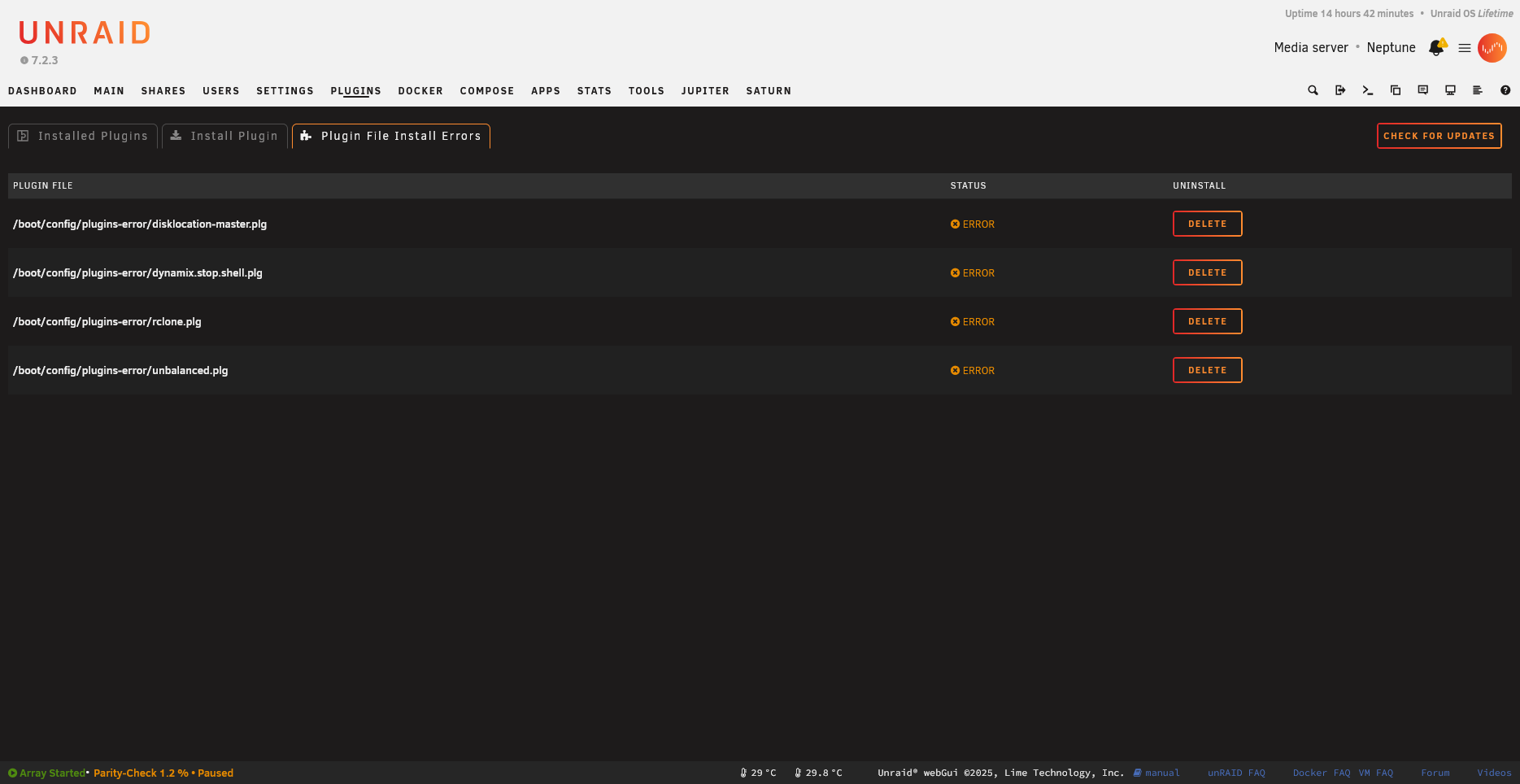
Error entries show the specific issue that occurred:
Plugin Won’t Install
- Check XML syntax - use an XML validator
- Verify URLs are accessible
- Check MD5 checksums match
- Look at
/var/log/syslogfor errors
Plugin Won’t Update
- Ensure
pluginURLattribute is set correctly - Verify the remote PLG has a newer version string
- Check that version comparison works (try
plugin check myplugin.plg)
Files Not Found After Reboot
Files in /usr/local/emhttp/ are in RAM. They must be:
- Inside a
.txzpackage that’s installed, OR - Created by an install script that runs on every boot, OR
- Cached on flash and copied via
<LOCAL>
Next Steps
- Learn about Page Files for creating the web UI
- See Build and Packaging for CI/CD pipelines and distribution
- Check Examples for real-world plugins to study